

Google Search Console is one of the most popular free SEO tools used by website owners, marketers, bloggers, and SEO specialists. This tool lets you know how Google crawls, indexes, and shows your site on Google search pages.
If you have any kind of website – a business website, healthcare website, college website, eCommerce store, SEO blog- Google Search Console can help you find ranking opportunities, indexing errors, drops in traffic, and keywords that can increase your organic visits.
In this Google Search Console Guide 2026, we will show you how to use GSC and how to make changes to improve your SEO from the Google Search Console.
What Is Google Search Console?
Google Search Console, or GSC for short, is a free service by Google that monitors website performance in Google Search.
GSC can help you:
Track organic clicks
Monitor search impressions
Check average keyword positions
Calculate click-through rate
Discover ranking keywords
Check indexed pages
Find indexing errors
Submit XML sitemaps
Inspect URL
Check Core Web Vitals
Find manual actions and security issues
Google describes Search Console as a service that provides information about website performance in Google Search.
Why is Google Search Console Important for SEO in 2026?
SEO is no longer just about adding keywords to a page.
Modern SEO includes:
Search intent
Useful content
Technical SEO
Website authority
UX
Page indexing
Entity signals
Linking
Mobile optimization
Search appearance
AI-driven search experience
Google Search Console provides information on your search performance straight from Google, and is therefore one of the most powerful tools to measure the effectiveness of your SEO strategy.
For instance, an SEO specialist who manages websites like:
Ekaasha Blog
Moonshine Biotech
Narayan Swaroop Hospital
Narayan Swaroop Nursing College
Kashyap Clinic
can utilize GSC differently for each website, depending on the needs of the business.
While the hospital will be interested in tracking medical keywords in the local search, the college may want to monitor searches related to courses and the blog – for informational SEO keywords.
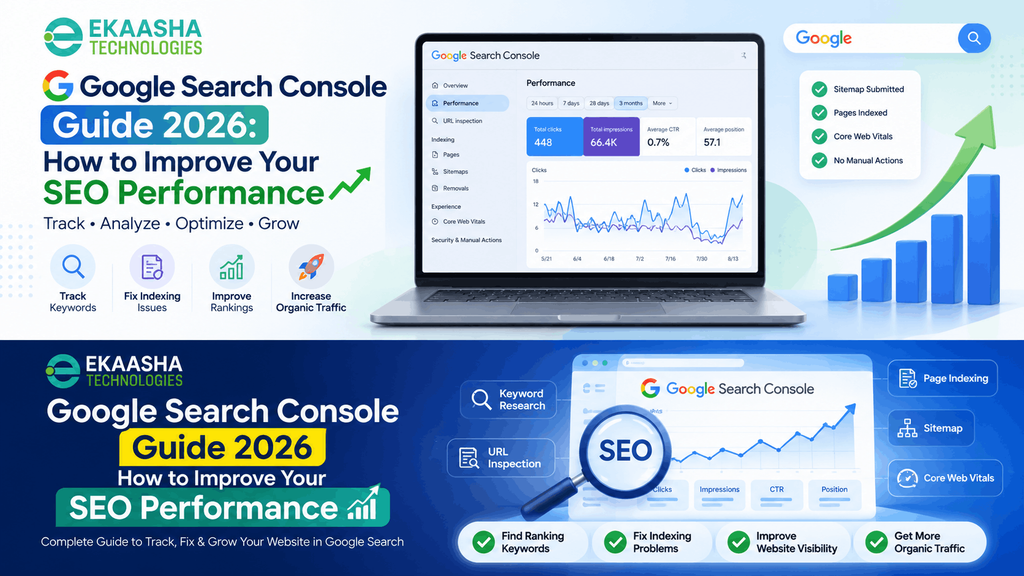
1. Understand the Google Search Console Performance Report
The Performance > Search Results report needs to be reviewed first.
Google Search Console gives you four significant SEO metrics:
Total Clicks
The number of clicks reflects the amount of times users clicked your website via Google Search.
An increase in clicks means that your website gets more traffic via Google Organic searches.
Total Impressions
The number of impressions shows how often your website showed up in the Google Search results.
An increase in impressions might indicate that Google is showing your website for more keywords.
Average CTR
CTR stands for Click-Through Rate.
It is calculated by the formula:
Clicks ÷ Impressions × 100
For instance:
Your website gets 1,000 impressions and 50 clicks:
CTR = 5%
Your website might have many impressions but a low CTR due to bad SEO title/description/alignment with user search intent.
Average Position
Average Position indicates roughly where your pages showed up in Google Search for the queries bringing impressions.
According to Google, this metric means the average position of the highest result on your site or URL, depending on the chosen report type.
2. Use the Queries Report for Keyword Research
Open:
Performance → Search Results → Queries
This report will contain all the actual searches on which your website was featured.
This is highly useful since you will get to know some of the keywords which may not be visible through any other tool.
For instance, for a healthcare website like Narayan Swaroop Hospital, some queries may include:
Best Hospital in Prayagraj
Multispeciality Hospital in Prayagraj
Hospital in Prayagraj
ENT Doctor in Prayagraj
Urologist in Prayagraj
Similarly, for a nursing college website, some of the queries may include:
Nursing College in Prayagraj
BSC Nursing College in Prayagraj
GNM Nursing College in Prayagraj
BMLS College in Prayagraj
OT Technician Course in Prayagraj
Similarly, for a clinic website such as Kashyap Clinic, some queries may be like:
Best Sexologist in Kanpur
Similarly, for an SEO blog, Ekaasha Blog, some of the queries may be like:
Google Search Console Guide 2026
Free Social Bookmarking Sites
Profile Creation Sites
Local SEO Guide
Google Algorithm Updates
SEO Checklist
Google has advised using the Queries report to determine the actual searches that lead users to your website.
3. Find Keywords With High Impressions but Low Clicks
Another one of the SEO opportunities that can be found within GSC is related to queries having:
High impressions + Low clicks
It means that Google already knows how to associate your webpage with the keyword, but users do not click it enough.
Look at:
Queries → Impressions → Sort High to Low
And then check CTR.
The improvements that could be done in such case:
- Rewriting the SEO title
- Improving the meta description
- Realigning with search intent
- Integrating the primary keyword naturally
- Improving the opening of the content
- Updating old information
- Including additional useful sections
- Improving the credibility of the page
For instance, if
Nursing College in Prayagraj
has a lot of impressions but not a lot of clicks, the page that corresponds to this query should be examined in terms of relevance of the title, quality of the content, position and competitive searches.
However, not all low-CTR pages should be rewritten automatically. The ranking position of the page needs to be checked first because CTR varies depending on position.
4. Comparing SEO Performance Across Dates
Do not evaluate SEO performance based on one date range only.
Choose:
Date → Compare
Some helpful comparisons will be:
- Last 7 days vs previous 7 days
- Last 28 days vs previous 28 days
- Last 3 months vs previous 3 months
- Year over year
This way it will be possible to determine if:
- There were increases in clicks
- There were decreases in impressions
- The rankings changed
- Certain pages lost visibility
- Certain keywords gained traffic
Google suggests comparing daily data in order to see traffic changes and comparing weeks or even months for understanding the bigger picture.
5. Analyze Performance Page by Page
Go to:
Performance → Pages
This reveals which pages get organic impressions and clicks.
Instead of analyzing the total website traffic, analyze:
Winning pages
- Pages which have:
- Growing clicks
- Growing impressions
- Improved rankings
These pages can be further improved through internal linking and content update.
Declining pages
- Pages which have:
- Suddenly falling clicks
- Falling impressions
- Decreasing keyword coverage
- Such pages require auditing for:
- Change in search intent
- Freshness of the content
- Changes in the competitor’s content
- Technical changes
- Internal linking
- Quality of the content
- Change in SERPs
For example, if one of the Ekaasha Blog posts goes from tens of thousands of impressions to a handful, it becomes clear whether the loss is due to a particular keyword or to the page in general, with the help of the Pages report combined with Queries.
6. Check Page Indexing Report
Go to:
Indexing → Pages
The Page Indexing report will allow you to understand which URLs Google has indexed and which it has not.
You can see:
- Indexed
- Crawled – not indexed now
- Discovered – not indexed now
- Excluded by noindex
- Page with redirect
- Not found (404)
Not all non-indexed URLs are problems.
For example, in the case of the WordPress site, it may be done on purpose to keep feeds, login pages, administration pages, some archive URLs, etc. out of search results.
Google confirms that not every URL needs to be indexed, and it advises using the URL Inspection tool to research a specific page.
Important SEO rule
Start by figuring out whether your money pages, service pages, product pages, course pages and other valuable articles are indexed.
7. Use URL Inspection for Important Pages
The URL Inspection Tool is one of the best technical SEO tools in Google Search Console.
Enter any important URL into the inspection bar.
You can inspect the following details:
- URL indexation status
- Crawlability
- Fetch status
- Indexability
- Last crawled time
- Sitemap found
- Canonical declared by user
- Canonical selected by Google
URL Inspection is recommended by Google for individual debugging and fixing of indexing.
On a product website like Moonshine Biotech, this feature will help check the following product pages:
MOONVIT-B
NERVGUARD-NT
CARNOVIT-D
When an incorrect product page appears for a particular search query, URL Inspection should be accompanied by other tools like checking canonicals, page contents, internal links, and GSC query-to-page reports combined with canonical checks, page content analysis, internal linking, and GSC query-to-page analysis.
8. Submit and Monitor Your XML Sitemap
Go to:
Indexing → Sitemaps
Sitemap XML assists Google in crawling important URLs on the website.
When it comes to the WordPress website, the sitemap is created automatically either by WordPress or an SEO plugin.
The following items must be included in the sitemap:
- Canonical URLs
- Important blog posts
- Important pages
- Important categories (if they give some search value)
Don’t fill the sitemap with unnecessary URLs.
According to Google, all URLs that must appear in the search results must be included and have full canonical URLs.
Sitemap submission doesn’t guarantee indexing.
Google uses sitemap submission as a discovery signal, but not as a request to index all the URLs.
9. Do Not Overuse “Request Indexing”
One frequent SEO error is constantly clicking on Request Indexing whenever your rankings go down.
Request Indexing can be helpful when:
- There is a newly created important page
- There is an important update to an existing page
- You solve an indexing issue
- The page hasn’t been recrawled after an important technical update
This isn’t something like a “rank-boost button.”
According to Google, making too many requests to recrawl doesn’t speed up the process and requesting indexing doesn’t mean you will get indexed right away.
If your indexed page suddenly goes down in rankings, figure out why that happened rather than requesting indexing.
10. Monitor Core Web Vitals
Google Search Console also offers a Core Web Vitals report.
There are three main metrics:
LCP – Largest Contentful Paint
It measures page loading performance.
Target recommended:
2.5 seconds or faster
INP – Interaction to Next Paint
It measures page responsiveness.
Target recommended:
Under 200 milliseconds
CLS – Cumulative Layout Shift
It measures visual stability.
Target recommended:
Under 0.1
They are part of the current guidelines for Core Web Vitals by Google.
But don’t try to achieve perfect page performance at the cost of page content.
Google recommends looking at the whole page experience: usability, mobile usability, HTTPS, intrusive content, easy access to main content.
11. Find Content Update Opportunities
GSC is one of the most effective ways to find existing pages that require updating.
Pages with:
- A high number of historical impressions
- Fewer recent impressions
- Positions from 8th to 20th
- Several related queries
- Stale information
Need to be improved with:
- Fresh statistics
- More detailed explanation
- Own examples
- Insightful thoughts
- Screen shots
- Frequently asked questions
- Internal links
- Headings optimization
- Better search intent coverage
Rather than posting hundreds of similar pages, updating those which already rank for Google might give you much higher SEO return on investment. improving pages that already have Google visibility can often deliver better SEO ROI.
12. Use GSC for Internal Linking
Assume that you write an article on:
Google Search Console Guide 2026
Now search for relevant topics within your existing website like:
Technical SEO
Indexing
SEO audit
Keyword research
Website ranking
Google algorithm update
Link to relevant pages.
Internal linking will enable users to find related and valuable information and will also help search engines recognize the link between pages.
According to Google, it is advised to make important pages accessible via crawling links from other discoverable pages.her discoverable pages.
13. How to Investigate a Sudden SEO Traffic Drop
If Google Search traffic plummets, it is not necessarily because your website got hit by a penalty.
Steps to take:
Step 1: Check Performance
Compare the current period with the previous period.
Step 2: Check Clicks and Impressions Separately
A decrease in traffic but stable impressions could mean low CTR.
An impression decline could mean poor search visibility.
Step 3: Check Pages
See which URLs lost traffic.
Step 4: Check Queries
Find out which keywords have disappeared or lost their positions.
Step 5: Check Indexing
Ensure your important pages have been indexed.
Step 6: Check Important URLs
Crawl status, canonicalization, indexing permission – check these aspects.
Step 7: Check Manual Actions
Go to:
Security & Manual Actions → Manual Actions
Step 8: Check Website Changes
See if developers have made any recent changes:
Robots.txt
Canonical tags
Settings of the SEO plugin
Redirects
Page templates
Internal links
URLs
Server settings
Step 9: Check Content Quality
If all technical aspects are clean, you need to check the following:
Search intent
Usefulness of content
Originality
Topic relevance
EEAT
Rivalry from other pages
Website-wide content quality
This procedure will help avoid unnecessary SEO changes due to guessing.
Frequently Asked Questions
Is Google Search Console free?
Yes. Google Search Console is a free service offered by Google to website owners and SEOs.
Can Google Search Console improve rankings?
Google Search Console does not directly improve ranking automatically. It offers data that can help you to optimize your website better.
How do I find keywords in Google Search Console?
Open:
Performance → Search Results → Queries
Here you will be able to see queries where your website had impressions or clicks.
What does “Crawled – currently not indexed” mean?
It means that the URL was crawled; Google crawled the URL but has not indexed it at this time.. URL should be checked for content quality, duplication, value, internal linking, and any other technical issues before acting.
Should every page of my website be indexed?
No.
Important pages should generally be indexable; however, there are duplicate pages, administrative URLs, feeds, redirects, and many others that could intentionally stay out of Google’s index
How often should I check Google Search Console?
There is no need to monitor it every hour. You just need to log in to Google Search Console once per week or month. Of course, important launches, migrations, SEO issues, or traffic changes can require more frequent monitoring. As Google itself recommends, it is not necessary to log in every day.
Final Thoughts
Google Search Console is one of the most powerful SEO services in 2026, as it helps you to see what exactly Google Search does to your website.
You shouldn’t pay attention to ranking only. You should use Google Search Console to understand:
What Google is showing → What users are searching → Which pages are performing → Which pages are losing visibility → What needs improvement
The best SEO approach would be one that includes using Google Search Console information and integrating it with good technical SEO, useful content, intent, backlinks, site authority, and user experience.
You should use the data to make the right decisions and not base your SEO approach on assumptions alone.
With proper application, Google Search Console will assist you in discovering new keywords, solving indexing issues, improving current pages, tracking organic growth, among other things.


Pingback: Local SEO Checklist for Small Businesses in Prayagraj & Lucknow (2026)
Pingback: Digital Marketing Cost in Lucknow: What Businesses Should Budget for in 2026